
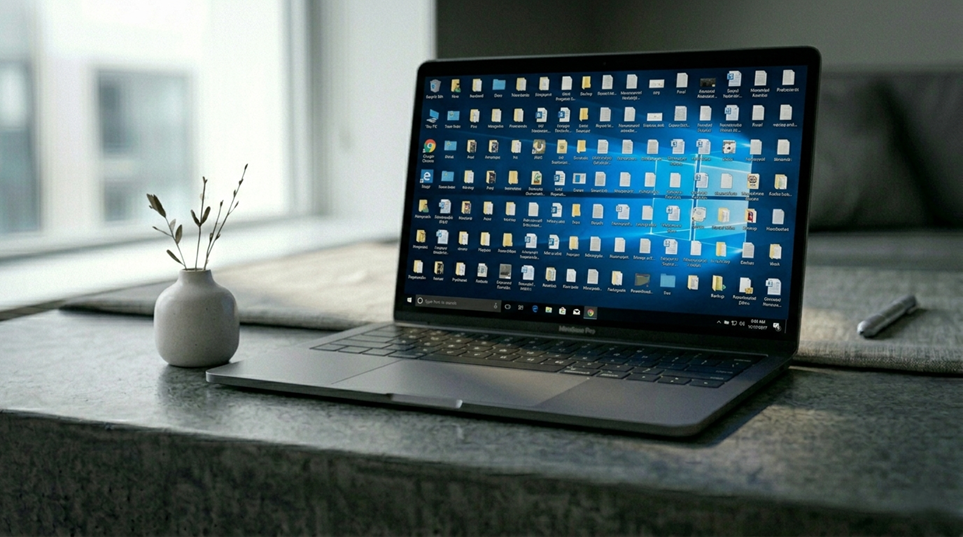
The idea that desktop icons affect PC performance sounds like something someone made up to justify being tidy. It isn’t. There’s a real mechanism behind it, and on certain systems it’s worth understanding.
What Windows actually does with desktop icons
Windows Explorer—the process that manages the desktop, taskbar, and file system—renders every icon on your desktop as a thumbnail and keeps those rendered images in RAM. This is what allows icons to appear instantly when you show the desktop rather than loading from scratch each time.
Each individual icon uses a small amount of memory. Ten shortcuts: negligible. But a desktop with 150-200+ files, folders, screenshots, downloads, and application shortcuts adds up. On heavily cluttered desktops, Windows Explorer’s memory usage can reach 300 to 500 megabytes or more from icon rendering alone—compared to a fraction of that on a clean setup.
The secondary overhead: redrawing on every interaction
There’s an additional cost that’s less obvious. Every time you minimize a window to reveal the desktop—whether intentionally or through Win+D—Windows has to redraw every icon on the screen. The more icons present, the more rendering work is required for every single interaction. This creates a small but real CPU and RAM cost that compounds with usage over time.
How to check your own system
Open Task Manager with Ctrl + Shift + Esc and click the Processes tab. Find Windows Explorer in the list and look at the Memory column. On a desktop with dozens or hundreds of icons, this number will be measurably higher than on a clean one. If you want a direct comparison, move a large batch of icons into a folder, then check the number again after a restart.
How significant is it?
On a modern system with 16 GB of RAM, desktop clutter alone is unlikely to cause noticeable slowdowns—the system has enough headroom to absorb the overhead. On older machines or systems with 8 GB or less of RAM, where available memory is more constrained, the difference is more meaningful. It’s also cumulative: if Windows Explorer is consuming 400 MB on icons while Chrome, a game, and a few background processes are also competing for the same pool, the margin gets smaller.
The fix
Create a folder on the desktop—“Desktop Dump,” “Archive,” anything—and drag everything into it. The files remain accessible through File Explorer; they’re just no longer being rendered as active desktop thumbnails. Keep the desktop for two or three shortcuts that see genuine daily use.
The entire process takes about 90 seconds and requires no downloads, no settings changes, and no software.