
We have all experienced the mild panic of writing a clean, professional email, copying a quick quote from a website, and pasting it in—only to watch the email format completely self-destruct. Suddenly, you have massive neon text, unwanted hyperlinks, and a stubborn gray background box that refuses to be deleted.
This happens because the standard copy command grabs Rich Text, which includes all the hidden HTML styling of the original webpage. The solution is arguably the greatest productivity shortcut ever invented.
The fix: Paste as plain text
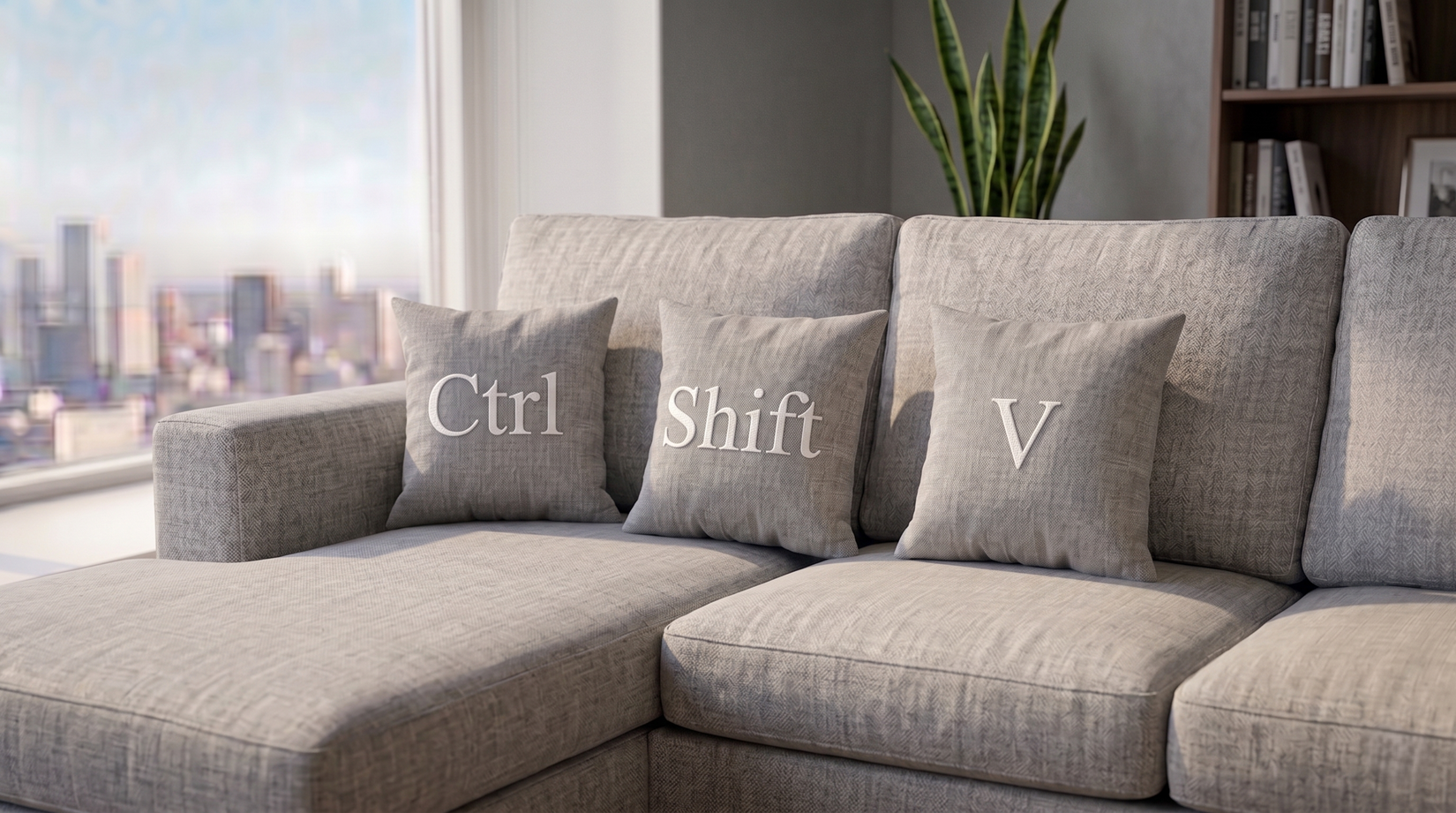
Instead of using your standard paste command, add the Shift key. When you press Ctrl + Shift + V on Windows (or Cmd + Shift + V on a Mac), you are telling your computer to drop the text into the document naked. It strips away the fonts, the colors, and the sizing, forcing the new text to seamlessly adopt whatever formatting you are currently using in your document.
(Note: If you are using native Apple apps like Pages or Apple Mail, the shortcut is sometimes slightly longer: Cmd + Option + Shift + V).
🔥 How to do it on your phone
This frustration isn’t limited to desktop computers. If you copy a recipe or an article quote on your smartphone and paste it into your Notes app, it often brings the messy formatting with it.
- On iPhone (iOS): Instead of just tapping “Paste,” look closely at the pop-up menu. Tap the right arrow on the menu and select Paste and Match Style. This acts exactly like the plain text shortcut on a desktop.
- On Android: Many modern Android keyboards (like Gboard) have a clipboard icon. When you open the clipboard, tapping the text snippet will usually paste it as plain text. Alternatively, you can paste the text into the URL bar of your browser first (which automatically strips formatting), then copy it again and paste it into your app.