
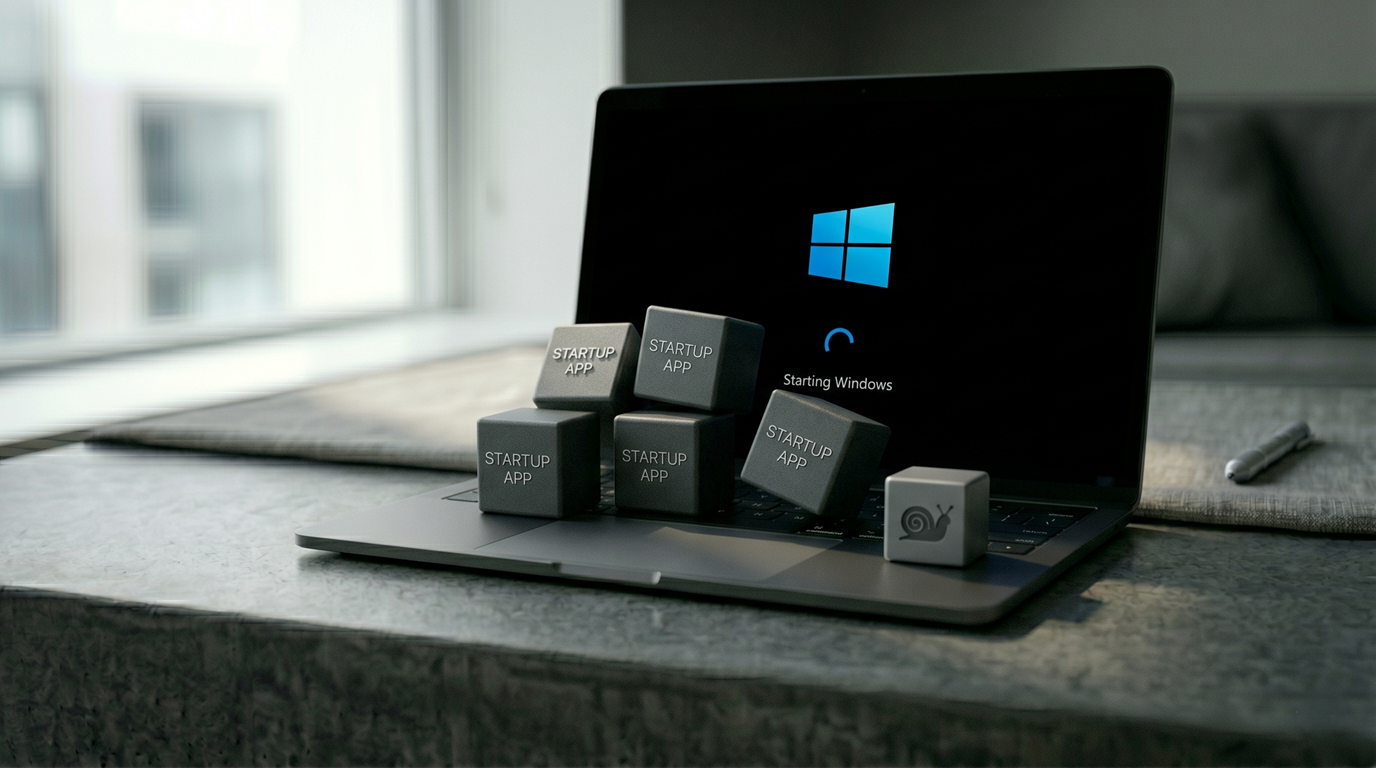
A slow Windows boot is one of the most common PC complaints—and one of the most consistently fixable ones. In most cases, the hardware isn’t the limiting factor. The cause is applications that have silently enabled themselves to launch automatically at startup, all running simultaneously before you’ve opened anything.
How to see what’s launching at startup
Press Ctrl + Shift + Esc to open Task Manager directly. Click the Startup Apps tab. This view lists every application configured to run automatically when Windows starts, along with its current status (Enabled or Disabled) and its Startup Impact rating.
The Startup Impact column—showing High, Medium, Low, or None—is the most useful indicator. Focus on anything rated High first; these are the applications consuming the most time and resources during the boot sequence.
How to disable startup apps
Right-click any application in the list and select Disable. This is a non-destructive action: the application is not uninstalled, modified, or broken in any way. It simply stops launching automatically at startup. The application remains fully functional and can be opened manually at any time. To reverse the change, right-click the same entry and select Enable.
What’s safe to disable
Most applications that add themselves to startup do so without a compelling reason from the user’s perspective. The following are generally safe to disable for most users:
- Media and communication: Spotify, Discord, Microsoft Teams, Zoom, Slack. These applications launch at startup by default, and most users don’t open them the moment Windows loads.
- Gaming platforms: Steam, Epic Games Launcher, GOG Galaxy. These have no reason to run at startup unless you want them immediately available.
- Cloud storage: OneDrive, if you don’t rely on it being actively synced at all times. If you use OneDrive continuously throughout your workday, leave it enabled.
- Software updaters: Adobe Creative Cloud auto-launch, Adobe Updater, and similar background update managers. Updates can be checked manually or when the application is opened.
- GPU overlays: GeForce Experience notifications, Radeon Software tray icon. These add startup time without providing functionality until you actively open them.
What to keep enabled
Antivirus software and Windows Security should remain enabled at startup—these need to run before other applications load to provide effective protection. Hardware drivers that actively affect device functionality, such as touchpad software on laptops or audio management software, are generally worth keeping enabled.
After making changes
Perform a full shutdown and cold boot—not a restart from sleep or hibernate—to accurately measure the improvement. Sleep and hibernate restore a saved system state and don’t reflect startup app changes.
Changes can be reviewed and reversed at any time through the same Startup Apps tab.