
Speed test says 200 Mbps. Download says two hours remaining. The disconnect is frustrating—and in most cases, it has nothing to do with your internet connection or your router. Windows is usually the explanation.
The bandwidth throttle you didn’t know about
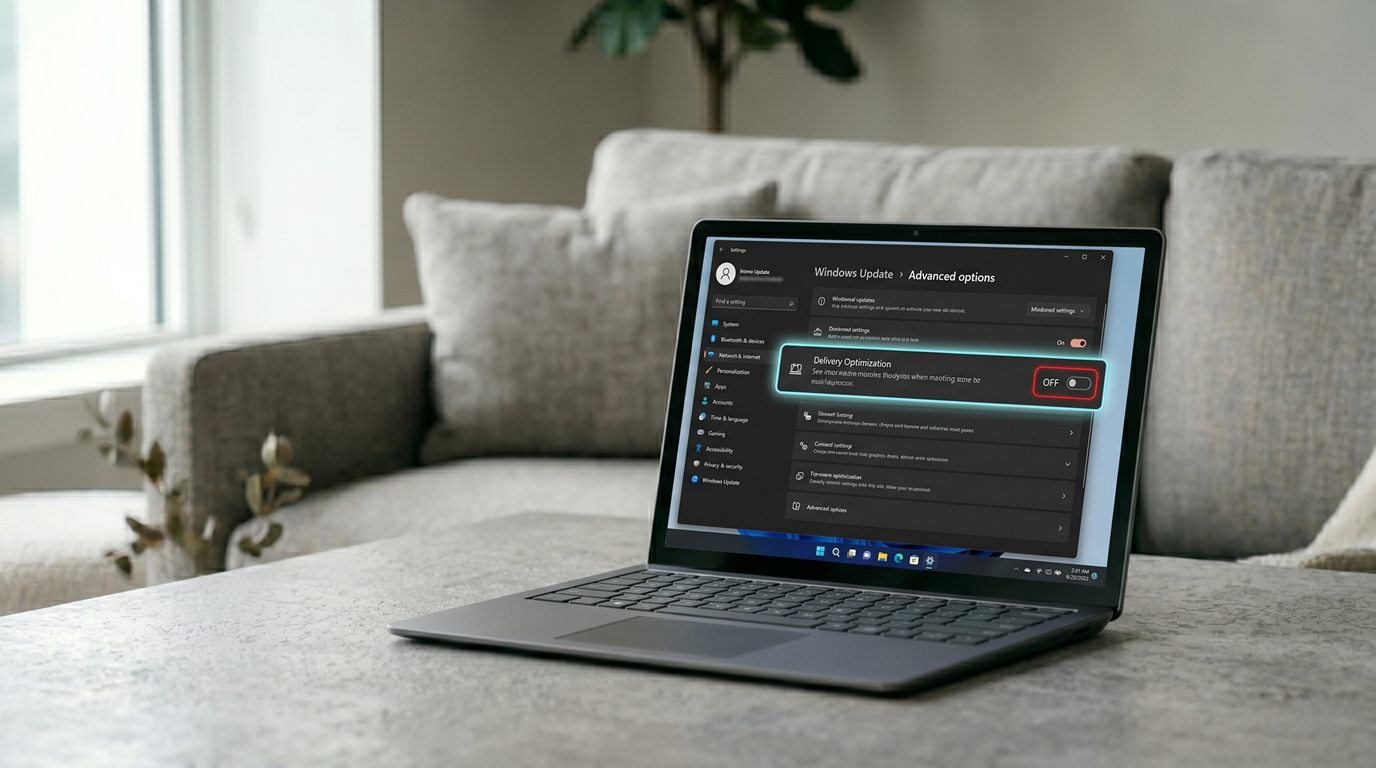
Windows includes a system called Delivery Optimization.
Its job is to manage how Windows Update files are downloaded and shared. Microsoft uses it to reduce load on their servers by turning Windows PCs into part of a peer-to-peer update network.
That means your PC can:
- download update data in the background
- share update files with other devices
- use part of your bandwidth automatically
And yes—it’s enabled by default.
Turn off update sharing first
If you don’t like the idea of your PC helping distribute Windows updates to other users, you can disable it:
Settings → Windows Update → Advanced options → Delivery Optimization
Then turn off:
Allow downloads from other devices
This stops Windows from sharing update files with other PCs online and can reduce unnecessary background bandwidth usage.
Control how much bandwidth Windows updates can use
Delivery Optimization also lets you control how much bandwidth Windows Update is allowed to consume.
Go to:
Settings → Windows Update → Advanced options → Delivery Optimization → Advanced options
Under Download options, you’ll see controls for:
- Background downloads: These happen silently while you use your PC normally.
- Foreground downloads: These happen when you manually start a Windows update.
You can lower both limits to reduce how aggressively Windows uses your connection.
Lower limits mean:
- Windows updates download more slowly
- but more bandwidth stays available for your games, videos, browsers, and other downloads
If Windows updates constantly seem to kick in at the worst possible time, this is usually the setting you’re looking for.
Since Delivery Optimization is turned on by default and most people never open these settings, it quietly uses your bandwidth without you realizing what’s happening.
Now you know where to look.