
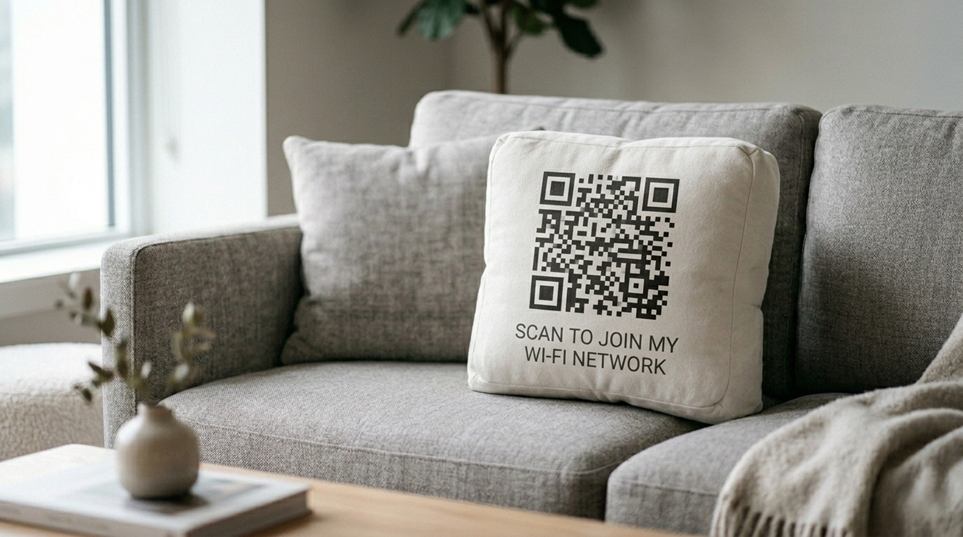
Reading the password off the bottom of a dusty router while guests wait is a rite of passage for anyone who’s ever hosted a gathering. But it doesn’t have to be. Every major operating system now has a built-in way to generate a Wi-Fi sharing QR code. Your guests can simply scan it to connect instantly—no password visible, no typing required.
Here is exactly where to find the sharing feature on your device.
On iPhone
With recent iOS updates, Apple moved Wi-Fi sharing into its dedicated password manager.
- Open the Passwords app.
- Tap the Wi-Fi category.
- Tap the name of the network you want to share.
- Tap Show Network QR Code.
A QR code will appear on your screen. Your guest doesn’t need a specific app—they can just open their standard camera app (whether they are on an iPhone or Android), point it at your screen, and the connection happens automatically.
On Android
Due to the open-source nature of Android, interfaces can vary slightly depending on who made your phone, but the standard path is incredibly simple:
- Open Settings and go to Wi-Fi (or Network & Internet).
- Tap your currently connected network to open its settings.
- Look for a Share button or a QR code icon.
Common Manufacturer Variations:
- Google Pixel / Stock Android: Tap the gear icon next to your network, then tap the “Share” button with the QR code icon (you will likely need to verify your PIN or fingerprint first).
- Samsung Galaxy: Tap the gear icon next to your connected network, then tap the “QR code” button located at the very bottom left of the screen.
Tip: If you can’t find it right away, simply type “share Wi-Fi” into your Settings search bar.
On Windows 11
Windows 11 makes it remarkably easy to share your network right from your laptop screen, which is perfect if your phone is in another room.
- Open Settings.
- Go to Network & Internet, then click Wi-Fi.
- Tap your network’s Properties.
- Scroll down to the Wi-Fi network password section and click “Show.”
A small window will pop up displaying both your plain-text password and a scannable QR code. Guests can just point their phone cameras at your monitor to get online.
What the QR code actually does
The QR code encodes your network’s name (SSID) and password in a standardized format that phone cameras are programmed to read automatically. The password is mathematically embedded in the code, meaning your guest is instantly connected to the network without the credential ever being displayed in plain text on their screen.
If you have a complex, highly secure password, this is the perfect way to grant access without actually handing over the string of characters.
Alternative: A permanent shareable QR code
If you frequently host guests, generating a permanent QR code for your Wi-Fi is a fantastic “set it and forget it” trick.
Log into your router’s admin page (usually 192.168.1.1 or 192.168.0.1), locate your wireless settings, and use any free online generator (just search “Wi-Fi QR code generator”). Print the code, laminate it, and stick it to your fridge or guest room nightstand. You will never have to read a router password aloud again.