
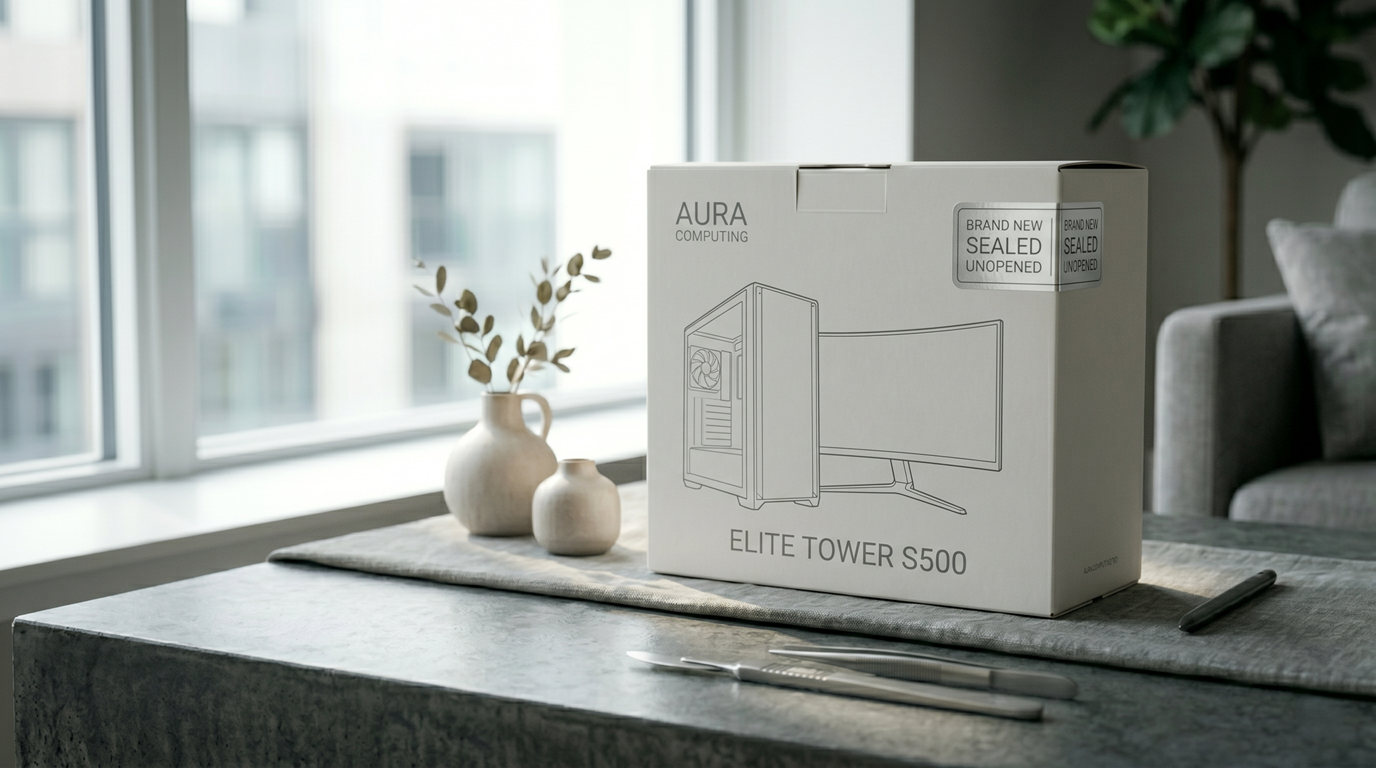
The instinct when unboxing a new computer is to start using it immediately. That’s understandable. But twenty minutes spent on setup now prevents hours of problems later—and one of these steps can only be done properly while the system is still fresh.
1. Update Windows before anything else
New PCs frequently ship with software that’s months out of date. The version of Windows installed at the factory may be missing significant security patches, bug fixes, and driver updates that have been released since the machine was built.
Go to Settings → Windows Update → Check for updates. Install everything. Restart if prompted. Do this before installing any applications—some software behaves differently depending on the Windows version it encounters during installation.
2. Update your drivers—especially GPU and network
Windows Update handles many drivers, but not always the most current versions. The two highest-priority drivers to check manually are your graphics card (GPU) and network adapter.
Open Device Manager (right-click the Start button → Device Manager), expand Display Adapters and Network Adapters, right-click each device, and select Update driver → Search automatically. For NVIDIA and AMD graphics cards, downloading the driver directly from the manufacturer’s website (nvidia.com or amd.com) will give you a more current version than Windows Update provides.
3. Uninstall bloatware
Factory PCs—particularly retail models from major manufacturers—come pre-loaded with trial software, manufacturer utilities, browser toolbars, and applications you never agreed to install. These consume storage, run background processes, and slow down a machine that should feel fast out of the box.
Go to Settings → Apps (or Apps & Features on Windows 10). Sort by Publisher to group manufacturer-installed software together. Remove trial antivirus subscriptions, OEM utility apps you don’t need, and any software you don’t recognize from publishers you didn’t choose. When in doubt, a quick search of the app name clarifies whether it’s something worth keeping.
4. Disable startup apps
Uninstalling bloatware removes the applications, but many leave startup entries behind. Others—including apps you do want to keep—set themselves to launch automatically without asking.
Press Ctrl + Shift + Esc to open Task Manager and click the Startup Apps tab. Sort by Startup Impact. Right-click and disable anything marked High that you didn’t choose to install. The application remains on the PC—it simply won’t launch at boot. Re-enable anything at any time through the same menu.
5. Create a system restore point
This is the step most people skip—and the one they most frequently wish they hadn’t.
A restore point is a snapshot of your system state that Windows can return to if something goes wrong later: a driver update that causes instability, software that modifies something it shouldn’t have, settings changes with unexpected consequences. Creating one while the system is new and clean means you have a reliable baseline to return to.
Search “Create a restore point” in the Start menu. In the System Properties window that opens, click Create. Name it “Fresh install.” The process takes about a minute.
Some people never use their restore point. Others use it exactly once, at exactly the right moment, and are very glad they set it. It costs nothing to create.
6. Check Windows Security
Windows Security is built into Windows 10 and 11 and provides real-time antivirus protection at no cost. Before installing any third-party security software—or paying for a subscription—check whether what’s already there meets your needs.
Search “Windows Security” in the Start menu, open it, and verify that Real-time protection is On under Virus & threat protection. Run a Quick scan. If everything shows green and definitions are current, you have functional baseline protection without any additional software.