
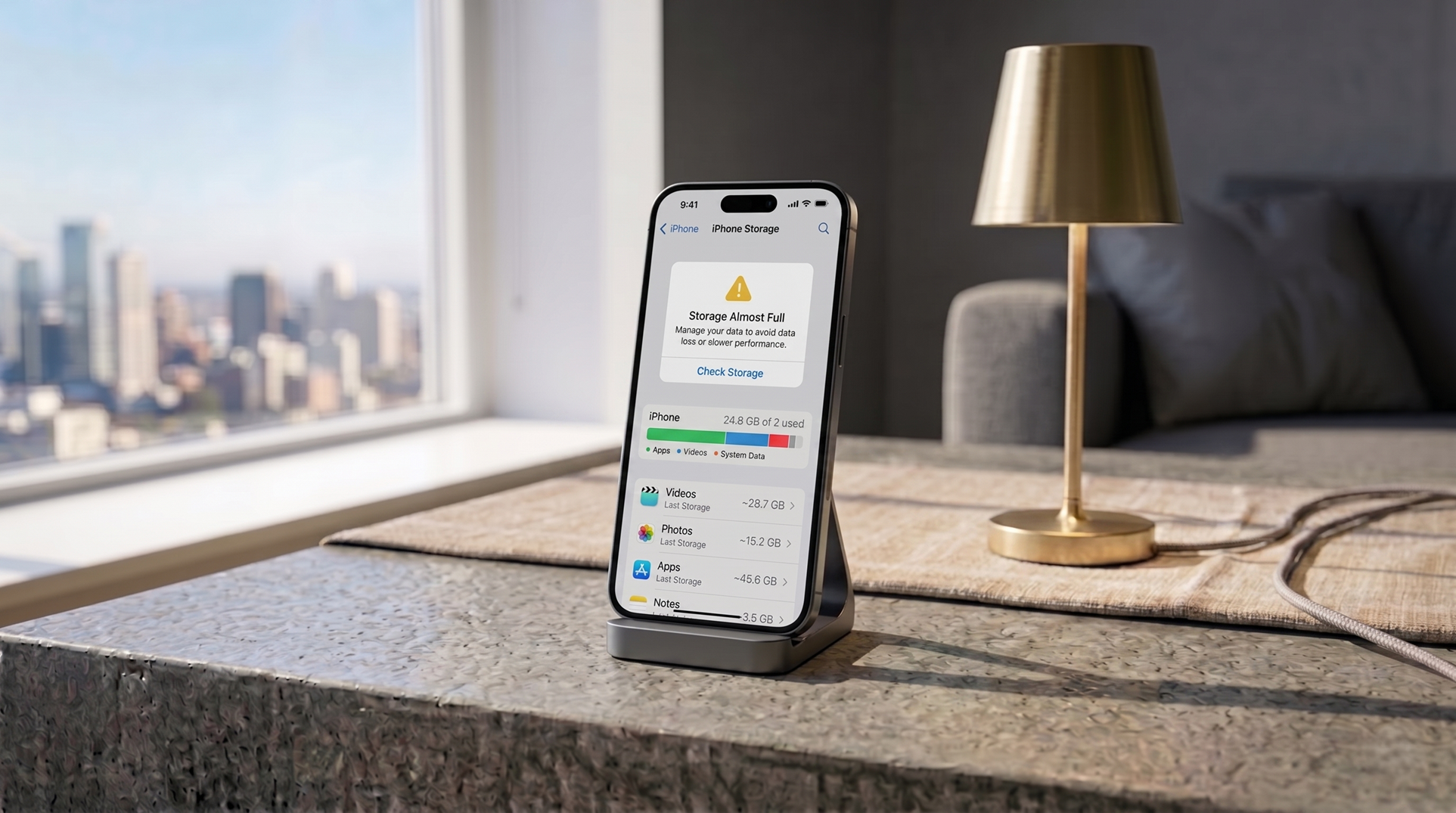
The “Storage almost full” notification creates a predictable response: open Photos, start deleting. This usually solves the immediate problem and also removes things you’d rather have kept when the actual cause was something else entirely that would have taken thirty seconds to find and clear without losing anything.
The storage breakdown on iPhone
Open Settings, go to General, and tap iPhone Storage. Give it a few seconds to calculate—the loading time is normal, it’s analyzing your entire device.
What appears is a ranked list of every app on your phone by total storage used. This is where the first surprise usually happens: the apps consuming the most space are frequently not what you’d expect. Streaming services with offline content, podcast apps with undeleted episodes, and messaging apps with years of accumulated media typically appear at the top.
Tapping any app in the list reveals a crucial detail: the split between the App Size and its Documents & Data. These are different things. App Size is the application itself—that number is fixed until an update changes it. Documents & Data is everything the app has accumulated: cached content, downloaded media, offline playlists, chat attachments, login tokens. It’s not uncommon to find an app that’s 150MB in size sitting on top of 3-4GB in Documents & Data.
On most apps, there’s an option to Offload App—which removes the application but preserves its Documents & Data—or Delete App, which removes both. Removing and reinstalling an app is a reliable way to clear its accumulated Documents & Data when there’s no in-app option to do so.
iOS also surfaces Recommendations below the app list based on usage patterns. These often include suggestions like enabling iCloud Photo Library to store originals in the cloud and keep smaller versions on the device, or automatically offloading apps that haven’t been opened in a long time.
The storage breakdown on Android
Open Settings and go to Storage. Unlike the iOS view, Android’s storage screen shows a category breakdown first: Apps, Photos, Videos, Audio, Documents, Downloads, and Other. The total and available storage are visible at the top.
Tapping any category opens its contents for selective deletion. The Downloads folder is frequently overlooked—files downloaded from browsers, email attachments, and documents accumulate there indefinitely and are rarely reviewed.
The Google Files app, which comes pre-installed on many Android devices and is available for free on Google Play for others, has a Smart Clean feature worth using. It identifies junk files (temporary cache data), large files that haven’t been opened recently, duplicate photos, and media that’s already been backed up to Google Photos. The identification is automatic—you review and confirm what to remove.
What people typically find
Across both platforms, the things that most commonly appear as the actual culprit rather than photos:
- Streaming app caches: Netflix, Disney+, Spotify, and similar services store data aggressively. Downloaded content that was watched once and never removed, audio quality caches, and offline content that was enabled and forgotten can easily represent several gigabytes per app.
- Messaging app media: WhatsApp, Telegram, and iMessage accumulate every photo, video, and file sent or received in every conversation over however many years the app has been installed. On an active phone with a few years of history, this is frequently the largest single category.
- Podcast apps: Downloaded episodes that were listened to months ago and never cleared.
- The Downloads folder: On Android, particularly, this folder fills with files that were opened once and never managed.
The camera roll itself does take space, and cloud backup options (iCloud Photos, Google Photos) are worth enabling if they’re not already. But in most cases, addressing the items above recovers more space with less loss than deleting from the camera roll.