
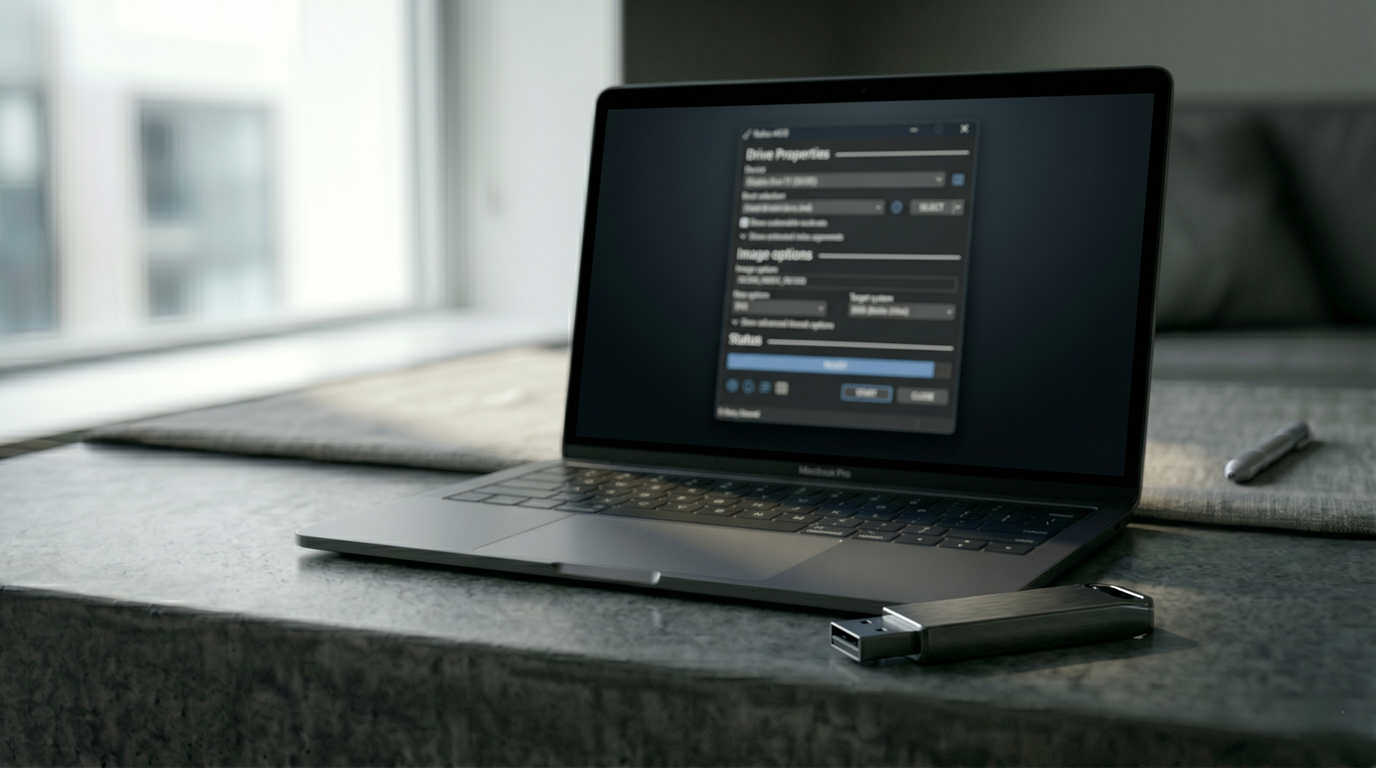
A bootable Windows USB drive is one of the most useful things you can prepare in advance. Whether you need to reinstall Windows after a crash, set up a new PC that shipped without an operating system, or simply want a recovery option on hand, the process takes about five minutes with the right tools.
What you need
A USB flash drive with at least 8GB of storage. Everything currently on the drive will be erased during the process, so back up any files you need to keep.
A Windows ISO file, available for free from Microsoft at microsoft.com/software-download. Navigate to the Windows 11 page, click Download Now, and choose the ISO option rather than the Media Creation Tool if you prefer a direct file download.
Rufus, available free at https://rufus.ie. It’s open-source, widely used, and doesn’t require installation—download the executable and run it directly.
Step-by-step process
Plug your USB drive into your computer and open Rufus. The application detects available drives automatically and displays your USB in the Device dropdown.
Click SELECT and navigate to your downloaded Windows ISO file. Rufus reads the ISO and configures most settings automatically.
For the partition scheme and target system: GPT and UEFI is the correct choice for any PC manufactured after approximately 2015. MBR and BIOS (or CSM) is appropriate for older hardware. Rufus typically selects the right option automatically when it reads the ISO, but it’s worth verifying.
Leave the file system and cluster size settings at their defaults unless you have a specific reason to change them.
Click START. Rufus displays a warning that all data on the USB drive will be destroyed. Confirm and allow the process to run. Depending on your USB drive’s write speed, this takes between five and fifteen minutes. When the status bar shows DONE in green, the drive is ready.
Using the bootable drive
Plug the completed USB drive into the target PC and restart. To boot from it, you need to access the BIOS or UEFI firmware settings—press F2, F12, DEL, or ESC during startup depending on your PC manufacturer (the correct key usually appears briefly on screen during boot). In the boot settings, set the USB drive as the first boot device, save, and restart. The Windows installer launches automatically.
Keeping one ready
The most common situation where people wish they had a bootable USB is immediately after they realize they need one. Creating one while your system is working normally takes five minutes. Trying to create one after Windows has stopped booting is considerably more complicated.