
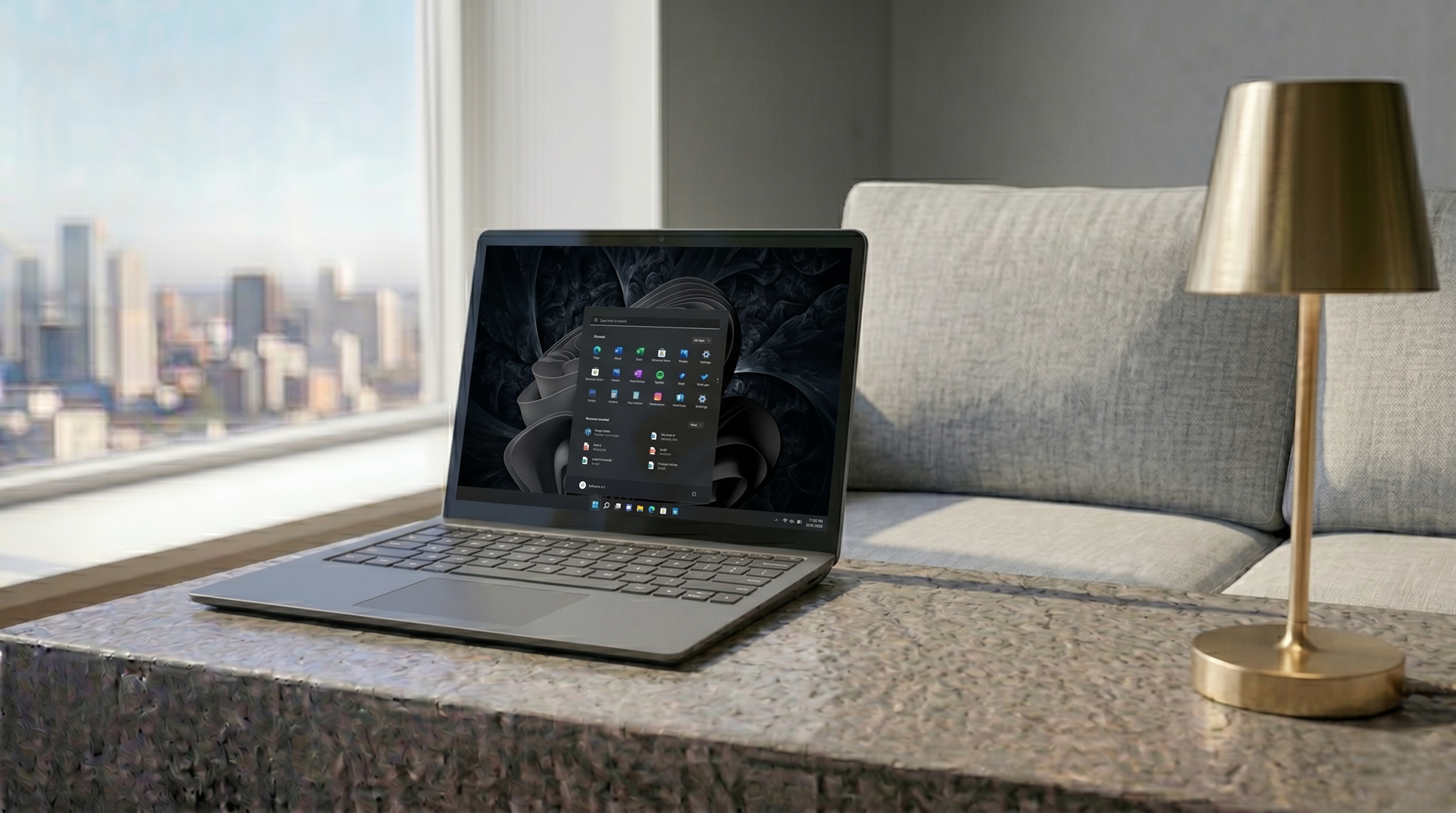
Your Windows 11 desktop doesn’t have to look exactly like Microsoft decided it should. By default, it’s functional, but let’s be honest: it’s boring. Messy desktop icons, a static wallpaper, and a solid taskbar aren’t optimized for productivity or aesthetic beauty.
This is your comprehensive guide to taking Windows from boring to insane.
Phase 1: Preparation
Before you install any powerful customization tools, you need to lay the groundwork for a minimal, clean look. A cluttered desktop is an inefficient desktop.
Step 1: Hide your icons
The fastest way to achieve a “minimal” look is to remove everything. Your icons are probably just messying up your background anyway.
- Right-click anywhere on your desktop.
- Hover over View.
- Uncheck Show desktop icons. Instant zen.
Phase 2: The core customization
If you saw my video, this is the deep dive on the steps I showed you.
Section 1: Lively Wallpaper
Standard wallpapers are fine, but dynamic wallpapers are incredible. They react to your mouse cursor, provide subtle movement, and give your PC a high-end feel.
- Grab the tool: You can get Lively Wallpaper completely free from the Microsoft Store.
- Activate dynamic look: Once installed, open Lively. It comes pre-loaded with several high-quality dynamic wallpapers (like a flowing fluid texture or a stylized calendar).
- Pro-tip: Lively has an incredibly low CPU/RAM impact because it pauses whenever you have a full-screen application open, keeping your performance maximized.
Section 2: Windhawk
This is where the real power customization happens. Windhawk isn’t just an app; it’s a platform for installing modular tweaks that overhaul deep system elements. This allows you to specifically target annoying Windows 11 limitations.
- Grab the tool: Go to the official Windhawk website (windhawk.net) and download the installer.
- Install the core 3 mods: Once you have Windhawk open, you are looking for these specific modules. Search and enable all three:
- Windows 11 Explorer Styler: Allows you to minimize File Explorer ribbons, customize colors, and enable the classic right-click menu.
- Windows 11 Start Menu Styler: Unlocks deeper control over the layout, colors, and behavior of the Start Menu.
- Windows 11 Taskbar Styler: Allows you to customize the taskbar look.
🔥 The hidden trick for translucency
While you have the Taskbar Styler mod open, navigate to its settings. Many styling modes exist (Blur, Fluent, Mica), but I personally recommend the Translucent effect. Make sure to click Save settings to apply your changes. Not only does this look amazing, but it also frees up visual clutter at the bottom of your screen.
Phase 3: The pro moves
If you want to take your customization even further, here are two essential advanced power moves and alternatives:
A. Better taskbar dock
While we use Windhawk for translucent taskbars, sometimes you want a completely separate launcher, similar to macOS or iPadOS. Nexus Dock is the golden standard for this. It provides dynamic animations, infinite customizability for icons, and can completely replace the standard Windows taskbar if you configure it to.
B. The deep system tweak
Winaero Tweaker is an “old-school” but incredibly robust alternative to Windhawk. While Windhawk uses modules, Winaero Tweaker uses simple checkmark options. I love it because it can disable core annoying features like Cortana, permanently enable classic full context menus, and deeply customize system fonts and spacing with a single click.
Conclusion
Transforming your desktop doesn’t just make it look cool—it optimizes how you work. A clean, minimal, translucent Windows setup frees you from visual clutter and forces you to think more cleanly.
Start with the core steps from the video, then deep-dive into the Windhawk and Winaero options listed here. There is no right or wrong answer—just make sure it feels insane.