
Hard drives give you warning signs before they fail—clicking sounds, slowing performance, increasing errors. SSDs don’t. When a solid-state drive fails, it typically happens without any prior symptoms. One day it works normally; the next, it won’t boot, and your data is inaccessible.
The good news: SSDs track their own health data internally using a system called S.M.A.R.T. (Self-Monitoring, Analysis and Reporting Technology). CrystalDiskInfo reads that data and presents it in a format anyone can understand.
Download and setup
CrystalDiskInfo is free. Download it from crystalmark.info → Downloads → CrystalDiskInfo. Install and open it—your drives appear automatically, no configuration needed.
Reading the health status
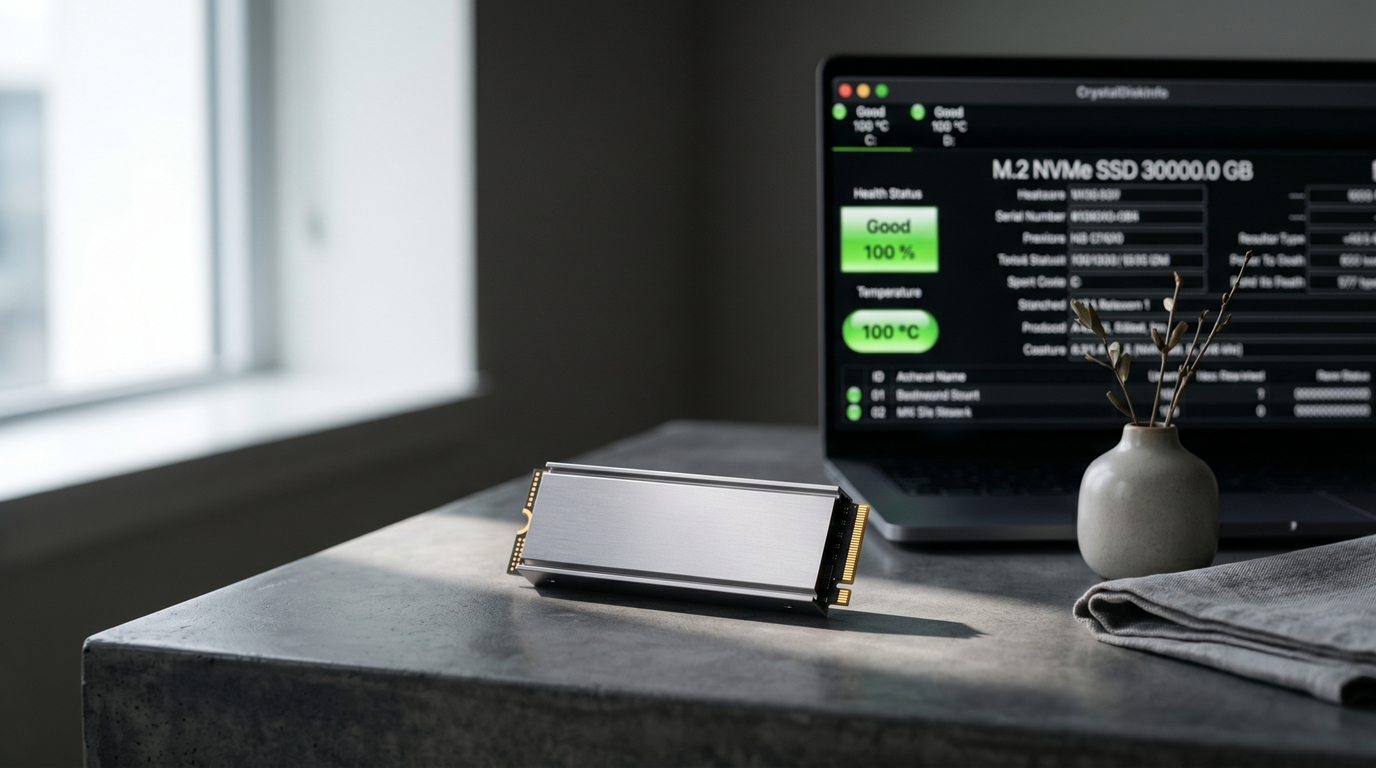
The most important thing on the screen is the health status displayed prominently for each drive:
- 🔴 Bad: Drive failure is likely. Back up immediately before doing anything else.
- 🟢 Good: The drive is healthy. No action required.
- 🟡 Caution: Early signs of degradation detected. Back up your important files now and start planning a replacement.
Key values to check
Beyond the overall status, pay attention to these specific readings:
- Temperature—displayed in the main view. Under 50°C at idle is healthy. Above 70°C under sustained load is concerning and may indicate inadequate airflow or cooling.
- Reallocated Sectors Count (ID 05)—this value should be zero. When an SSD cell fails, the drive remaps it to a spare — this is counted here. Any value above zero means physical cells are failing. It doesn’t indicate immediate failure, but it’s a sign of degradation.
- Total Host Writes—shows the cumulative amount of data written to the drive over its lifetime. Compare this to the drive’s rated TBW (Terabytes Written) specification to understand how much of its rated lifespan has been used.
- Power On Hours—total runtime since the drive was first used.
What to do if you see “Caution” or “Bad”
Back up all important data immediately before taking any other action. Use an external drive, cloud storage, or both. Once your data is safe, replace the drive—even if it appears to be functioning normally, a Caution status indicates the drive is degrading and failure can occur without further warning.
How often to check
Running CrystalDiskInfo once every few months takes thirty seconds and gives you a current picture of your drive’s health. On drives that are more than three years old or have high write counts, checking monthly is reasonable.